What you’ll learn: How ClayHog Workflows turn AI visibility changes into automatic responses, which triggers and steps are available, how approvals keep a person in control, and which templates to start with.
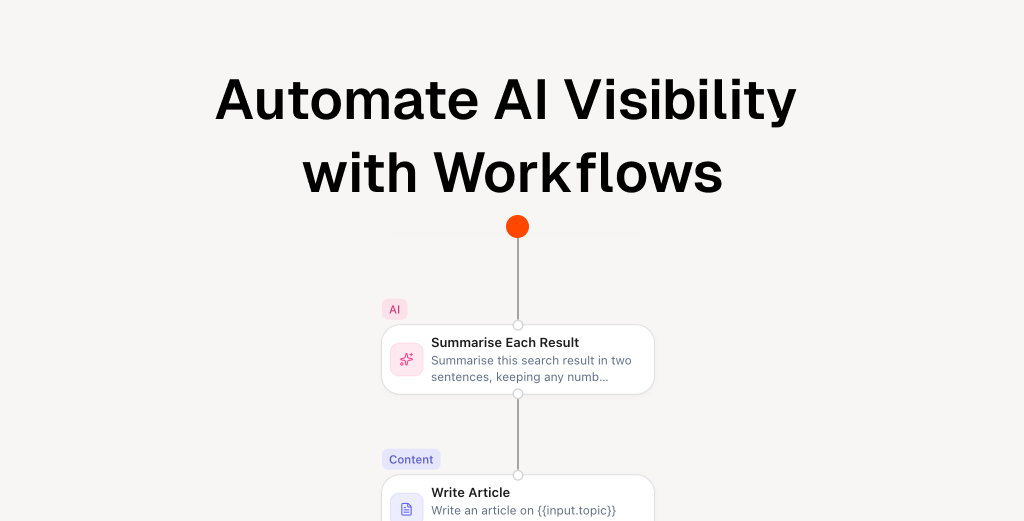
Workflows are automations in ClayHog that start when something changes in your AI visibility data and then do the follow-up work for you: diagnose the change, draft content, wait for a review, publish, and tell the team.
Key takeaways:
- Daily tracking tells you what changed. A workflow decides what happens next, without waiting for someone to open the dashboard
- Workflows start from a trigger: a schedule, a metric threshold, a competitor overtake, a citation change, a content event, or a webhook
- Steps cover data, research, AI analysis, logic, content, publishing, and notifications
- A Wait for Approval step keeps a teammate in control before anything is published
- More than 20 templates cover the most common GEO responses, so you rarely start from a blank canvas
- Workflows are included on the Business plan
Why Monitoring Alone Is Not Enough
Most teams that track AI visibility hit the same wall. The data is there, but nobody acts on it fast enough.
A competitor starts showing up in ChatGPT answers for your core prompts. Your visibility on a high-intent query drops by 15%. A domain that used to cite you stops doing so. In each case the signal appears in the dashboard, but someone has to notice it, figure out why it happened, brief a writer, review the draft, and publish it. That chain often takes weeks, and AI answers keep shifting in the meantime.
Workflows close that gap. The moment a trigger fires, the workflow pulls the relevant data, runs the analysis, drafts the response, and puts it in front of the right person. Your team’s job shifts from noticing problems to approving fixes.
If you are still collecting this data by hand, start with why teams automate AI visibility tracking.
How a Workflow Is Built
Every workflow has three parts: a trigger that starts it, steps that do the work, and connections that decide the order. You build them on a visual canvas by dragging steps from the palette or using the quick-add menu, then linking them together.
Triggers: when it starts
| Trigger | Starts when |
|---|---|
| Schedule | Every hour, day, weekday, week, or month, at the time and timezone you choose |
| Metric threshold | Visibility, sentiment, share of voice, average position, or brand mentions crosses a value or moves by a percentage |
| Competitor overtake | A competitor (or a specific one you pick) passes your visibility |
| New citation domain | A new domain starts citing you in AI answers |
| Lost citation domain | A domain that cited you stops doing so |
| New citation page | A new page appears among the sources AI models cite |
| New competitor | A new competitor shows up in AI answers for your prompts |
| Content ready | A content document finishes generating |
| Content published | A content document is published to your CMS |
| Webhook | Another system calls the workflow’s secure webhook URL |
Data-driven triggers have a cooldown, so a workflow that fires on a visibility drop doesn’t run again every hour while the drop persists.
Steps: what it does
Steps are grouped by what they do:
- Data: load brand data, answer engine insights, citation share, citation pages, prompt answers, and your brand context
- Research: scrape a web page, search the web, or run topic research
- AI: prompt an AI model, or hand a task to an AI Agent that researches with read-only access to your analytics and writes up the result
- Logic: conditional branches, switch, filter a list, run a step for each item, merge branches, transform data, and stop
- Content and updates: create content, update existing content, add prompts, and add competitors
- Actions: publish to your CMS, send an email, send a Slack message, or make an HTTP request to any other tool
Every AI step already reads your brand context, so drafts follow your tone, approved claims, and hard rules. Use the Use Brand Context step when a non-AI step, such as an email or HTTP request, needs that information too.
Approvals: who decides
The Wait for Approval step pauses the run until a teammate decides. They can approve, approve with edits, or reject. Approving passes the content on to the next step. Rejecting cancels the run. By default, an approval expires after a week so a forgotten review never holds a run open forever.
Rule of thumb: put an approval step before anything that leaves ClayHog, such as publishing to your CMS or sending an email to customers. Keep internal steps, like Slack summaries, fully automatic.
Five Workflows Worth Setting Up First
These templates ship with ClayHog. Each one can be used as-is or edited on the canvas.
1. Visibility Drop Responder
Trigger: visibility drops by 10% or more in a day.
The workflow reads your answer engine insights for the past week, pulls the latest AI answers for the affected prompts, asks an AI model to diagnose the likely cause and recommend fixes, drafts corrective content, and emails the team with the diagnosis and the draft.
Why it matters: visibility drops compound. The sooner you know why AI stopped mentioning you, the cheaper the fix.
2. Competitor Overtake Watch
Trigger: a competitor passes your visibility over the last seven days.
The workflow pulls citation share for the top sources, summarizes the threat in a few bullets with the fastest counter-moves, and posts it to Slack.
Why it matters: a competitor overtake usually means they gained a citation source you don’t have. This workflow tells you which one, the same day. For background, see our guide to source gap analysis.
3. Weekly Visibility Digest
Trigger: every Monday morning.
The workflow pulls last week’s visibility and citation share, writes a short briefing, and emails it. It replaces the weekly “can someone pull the numbers” message.
4. Lost Citation Watch
Trigger: a domain that used to cite you stops doing so.
The workflow looks at the pages AI still cites, explains the likely reason for the loss, and emails three recovery moves: refresh your page, pitch the publisher an update, or replace the source with another one.
5. Draft, Review, Publish
Trigger: you start it with a topic and an audience.
The workflow reads your brand context, writes a GEO-optimized article, waits for an editor to approve or edit it, then publishes it to your CMS. It is the simplest way to put a human review into an automated content pipeline.
Other templates cover the AEO Content Refresh, Content Brief Creation, Citation Coverage Report, Topic Research to Prompts, Query Fanout to Prompts, and a set of agent templates for content gaps, visibility recovery, competitor comparisons, objection responses, citation outreach, and page refreshes.
Testing and Running Workflows Safely
Automation is only useful if you trust it. Workflows include a few tools that make that easier:
- Test a single step before running the whole workflow, so you can check the output of one AI prompt or HTTP request in isolation
- Run history shows every run step by step, with the input and output of each step and a preview of any content it created
- Cancel, retry, and rerun a run from the history panel
- Automatic retries for failed steps, with an option to continue past an error instead of stopping the run
- Version history lets you restore an earlier version of your steps if a change doesn’t work out
- Encrypted secrets store API keys for HTTP requests and webhooks, so they never appear in the workflow itself
Workflows vs. AI Agents
Both can act on your AI visibility data, but they suit different jobs.
| Workflows | AI Agents | |
|---|---|---|
| Best for | Repeatable responses you want to happen the same way every time | Open-ended questions and one-off work |
| How it starts | A trigger, a schedule, or a webhook | A chat message, a schedule, or an accepted opportunity |
| Who designs the steps | You, on the canvas | The agent, based on your request |
| Plan | Business | Every plan |
They also work together. An agent can create, update, and run workflows for you in chat, and a workflow can hand a task to an agent as one of its steps. When you accept an agent opportunity, the agent can start a matching workflow to do the work.
Getting Started
- Open Workflows in ClayHog and browse the templates
- Start with Visibility Drop Responder or Weekly Visibility Digest, since both are useful on day one
- Check that your brand context is filled in, so drafts sound like you
- Use Test step on the AI steps to check the output before turning the workflow on
- Add a Wait for Approval step before any publishing or customer-facing email
- Review the run history after the first few runs and adjust thresholds and cooldowns
Workflows are included on the ClayHog Business plan. See pricing or start your free trial to try ClayHog with your own brand.
Frequently Asked Questions
What are Workflows in ClayHog?
Workflows are automations you build on a visual canvas. Each workflow starts from a trigger, such as a schedule, a visibility drop, a competitor overtake, or a webhook, and then runs a chain of steps that can pull your AI visibility data, research a topic, ask an AI model or agent to analyze it, create or update content, wait for approval, publish to your CMS, and notify your team.
Which plan includes Workflows?
Workflows are included on the ClayHog Business plan. AI Agents, which flag opportunities and draft fixes in chat, are included on every plan.
What can trigger a workflow?
Ten triggers are available: a schedule (hourly, daily, weekdays, weekly, or monthly), a metric threshold on visibility, sentiment, share of voice, average position, or brand mentions, a competitor overtake, a new citation domain, a lost citation domain, a new citation page, a new competitor, content finishing generation, content being published, and a webhook call from another system.
Can a workflow publish content without a human checking it?
It can, but you don’t have to let it. Add a Wait for Approval step before publishing and the run pauses until a teammate approves, approves with edits, or rejects. If nobody decides within a week (or the window you set), the run cancels on its own.
Do I need to build workflows from scratch?
No. ClayHog ships with more than 20 templates, including Visibility Drop Responder, Competitor Overtake Watch, Weekly Visibility Digest, Lost Citation Watch, AEO Content Refresh, and Draft, Review, Publish. Start from a template and adjust the steps to fit your team.