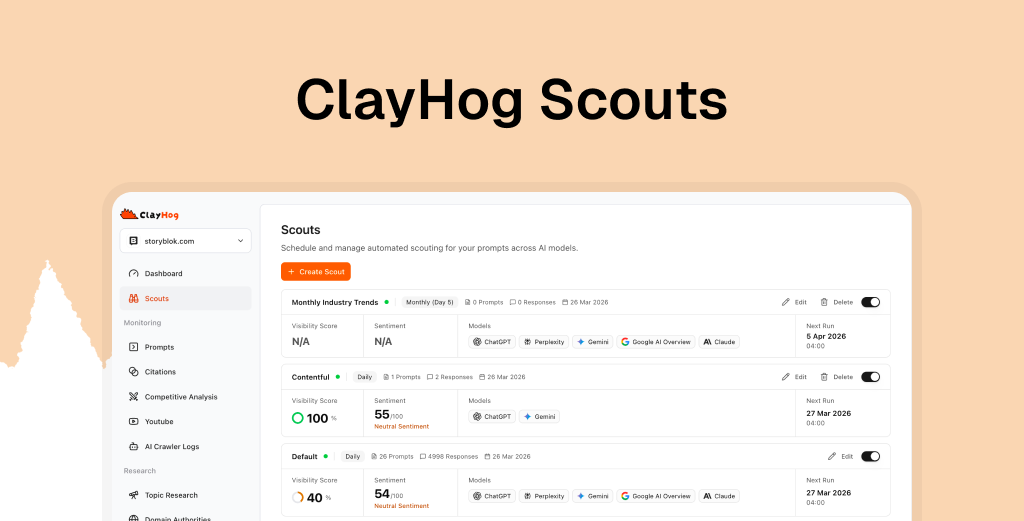
What you’ll learn: How to use Scouts to organize your AI monitoring into structured groups, choose the right schedule for each, and read per-Scout analytics to get cleaner, more actionable insights.
Scouts are scheduled monitoring groups in ClayHog. Each Scout runs its own set of prompts against your chosen AI models on a schedule you control, and has its own analytics dashboard. Instead of dumping all your prompts into a single tracking bucket, Scouts let you separate monitoring by purpose.
Key takeaways:
- Scouts keep your monitoring organized by giving each group its own prompts, schedule, AI models, and analytics
- Create separate Scouts for different purposes: topic clusters, campaigns, competitors, or teams
- Each Scout has a dedicated dashboard with visibility, sentiment, citations, and competitor data scoped only to its prompts
- A default Scout is created automatically when you add a brand, so you always have a starting point
- You can pause Scouts without losing their configuration and reactivate them when needed
Why One Big Prompt List Doesn’t Scale
When you first start tracking AI visibility, a single list of prompts works fine. You have 10-20 prompts, they all run daily, and you check one dashboard.
But as your monitoring matures, problems appear:
- Mixed signals. Product prompts, competitor prompts, and campaign prompts all feed into the same visibility score. Is your overall score dropping because of a seasonal campaign ending, or because competitors are gaining ground on your core terms?
- One schedule for everything. Some prompts need daily tracking (brand terms during a product launch). Others only need weekly checks (industry trend queries). Running everything daily spends more credits on low-priority tracking. If you’re still doing this manually, the problem compounds even further.
- Noisy analytics. When 100 prompts span five different topics, your citation data, sentiment trends, and competitor heatmaps become averages of averages. The signal gets buried.
- Team confusion. Your content team cares about topic authority prompts. Your PR team cares about brand sentiment prompts. Everyone looks at the same dashboard and filters for what they need, which is slow and error-prone.
Scouts solve all of this by letting you split your monitoring into independent groups, each with its own scope and schedule.
What a Scout Controls
Every Scout in ClayHog has four configurable elements:
| Element | What It Does |
|---|---|
| Name | Labels the Scout for easy identification (e.g., “Product Reviews Q2”) |
| Prompts | The specific set of prompts this Scout monitors |
| AI Models | Which models to run against (ChatGPT, Gemini, Perplexity, Claude, etc.) |
| Schedule | How often the Scout runs: daily, weekly (pick the day), or monthly (pick the date) |
Each Scout also has an active/inactive toggle. Pausing a Scout stops it from running without deleting its configuration or historical data.
When to Create Separate Scouts
There’s no single “right” way to organize Scouts. The best structure depends on how your team works and what decisions you’re making from the data. Here are the most common approaches.
By Topic Cluster
Group prompts around the topics they cover. This gives you clean analytics per topic area.
Example for a project management SaaS:
| Scout Name | Prompts Include | Schedule |
|---|---|---|
| Product Category | ”best project management tools,” “top task management apps” | Daily |
| Integrations | ”project tools with Slack integration,” “Jira alternatives” | Weekly |
| Use Case: Remote Teams | ”project management for remote teams,” “async collaboration” | Weekly |
Each Scout’s dashboard shows visibility and citations scoped to that topic, so you can see which content areas drive the most AI visibility without the other topics diluting the numbers.
By Campaign
Create a Scout for each marketing campaign with its own timeline and relevant prompts. When the campaign ends, pause the Scout. Its data stays intact for post-campaign analysis.
Example:
| Scout Name | Prompts Include | Schedule |
|---|---|---|
| Spring Launch 2026 | Product launch prompts, comparison prompts vs. key rivals | Daily |
| Annual Industry Report | Report-related queries, thought leadership prompts | Weekly |
| Partnership Announcement | Co-branded queries, partner comparison prompts | Daily |
This approach prevents campaign-specific prompts from skewing your ongoing brand monitoring analytics. When the Spring Launch Scout runs daily during launch week and then gets paused, your core brand Scout’s trend lines stay clean.
By Competitor Focus
Separate your brand monitoring from competitive intelligence. This keeps your own visibility trends clean while giving you a dedicated view of how competitors perform.
Example:
| Scout Name | Prompts Include | Schedule |
|---|---|---|
| Brand Visibility | ”What is [your brand],” “[your brand] reviews,” “[your brand] vs” | Daily |
| Competitor Tracking | ”[Competitor A] vs [Competitor B],” “alternatives to [Competitor]“ | Weekly |
Your brand Scout runs daily because you want to catch visibility changes fast. The competitor Scout runs weekly because you’re looking for trends over time, not daily fluctuations.
By Team
If different teams use ClayHog for different purposes, give each team its own Scout. They get a focused dashboard without having to filter through prompts that aren’t relevant to them. This is especially useful for agencies managing multiple brands where each client account may have team-specific monitoring needs.
Example:
| Scout Name | Owned By | Prompts Include | Schedule |
|---|---|---|---|
| Content Team | Content/SEO | Topic authority, how-to queries, guides | Daily |
| PR & Comms | Communications | Brand sentiment, crisis monitoring, news | Daily |
| Product | Product team | Feature comparison, integration queries | Weekly |
Setting Up Your First Scout
Step 1: Assess Your Current Prompts
Before creating Scouts, look at the prompts you’re already tracking. Group them mentally by purpose. If you have 40 prompts and they naturally split into three categories, that’s three Scouts.
Step 2: Create the Scout
In ClayHog, go to your brand’s Scouts page and click Create Scout. You’ll set:
- Name. Pick something descriptive enough that anyone on your team knows what it tracks
- Frequency. Daily for high-priority monitoring, weekly for trend tracking, monthly for periodic check-ins
- AI Models. Select which models this Scout should run against. You might track your brand prompts across all models but only check competitors on ChatGPT and Perplexity
Start with daily for your core brand Scout. You can always switch to weekly later if daily feels like too much data. For secondary Scouts (competitors, campaigns), weekly is usually the right starting frequency.
Step 3: Add Prompts
You can add prompts to your Scout in several ways:
- Create new prompts directly within the Scout
- Generate prompts with AI using ClayHog’s AI assistant based on your brand information
- Generate from keywords using topic research data
- Move existing prompts from the default Scout into your new Scout
Step 4: Review and Adjust
After your Scout has run at least a few times, check its analytics dashboard. If the data feels too broad, consider splitting it into two more focused Scouts. If it feels too narrow, merge prompts from another Scout.
Reading Scout Analytics
Every Scout has a dedicated Overview tab with analytics scoped to its prompts only. This is where the value of organized monitoring becomes clear.
Visibility Score
The Scout’s visibility score is an average across all its prompts and selected AI models. Because each Scout has a focused set of prompts, this score is meaningful. A “Product Category” Scout with a 72% visibility score tells you something specific. An “everything” bucket with a 72% score tells you very little. For strategies on improving that number, see our guide on improving your brand visibility score in 30 days.
Sentiment Trend
The sentiment chart shows how AI models talk about your brand in the context of this Scout’s prompts over time. A brand Scout might show consistently positive sentiment, while a competitor comparison Scout might show neutral sentiment because AI models tend to be balanced in comparison contexts.
Citation Tracking
The citations section groups cited domains with expandable URL details. Within a Scout, this data is directly relevant. If your “Integrations” Scout shows that a competitor’s documentation page gets cited 3x more than yours, you know exactly what content to improve.
Competitor Data
Competitor visibility and heatmaps are scoped to the Scout’s prompts. This means your “Product Category” Scout shows competitor performance on product category prompts only, giving you a focused competitive view rather than a diluted average.
Prompt-Level Metrics
The Prompts tab within each Scout shows per-prompt visibility, sentiment, response count, competitor mentions, and region data. You can filter by prompt type (organic, competitor), intent, region, and active/paused status.
Managing Scouts Over Time
Moving Prompts Between Scouts
As your strategy evolves, you’ll need to reorganize. ClayHog lets you move prompts between Scouts:
- From the default Scout into a custom Scout when you create a new monitoring group
- Back to the default Scout if you’re simplifying your structure
- When deleting a Scout, you can choose to move its prompts to the default Scout instead of deleting them
Pausing and Reactivating
Toggle a Scout inactive when you don’t need it running (e.g., a campaign Scout after the campaign ends). The Scout keeps all its settings and historical data. Toggle it back on when you need it again, and it picks up on its next scheduled run.
When to Create vs. Modify
If you need to change a Scout’s schedule or AI models, keep in mind that changing settings on a running Scout affects its analytics continuity. For major changes, consider creating a new Scout rather than modifying an existing one. This preserves the historical data from the original configuration while giving you a clean baseline for the new setup.
Scout Limits by Plan
Scouts have no hard cap on every ClayHog plan. You can add as many brands and prompts as you need. What varies by plan is your monthly credit allowance, which funds how often Scouts run and which engines they query. See pricing for current credit amounts.
Every plan creates a default Scout automatically when you add a new brand. The default Scout comes with available AI models enabled, giving you an immediate starting point. You can rename it, adjust its schedule, and customize its model selection like any other Scout.
Putting It All Together
Here’s a practical setup for a mid-size SaaS company organizing monitoring with five Scouts:
| Scout | Schedule | Models | Prompts | Purpose |
|---|---|---|---|---|
| Brand Core | Daily | All models | 20 | Core brand visibility tracking |
| Product Category | Daily | ChatGPT, Gemini, Perplexity | 25 | Category-level competitive tracking |
| Content Authority | Weekly | ChatGPT, Gemini | 20 | Topic authority and citation earning |
| Competitor Intel | Weekly | ChatGPT, Perplexity | 20 | Competitive monitoring |
| Campaign: Q2 Launch | Daily | All models | 15 | Time-bound campaign tracking |
This setup gives you:
- Daily brand health from the Brand Core and Product Category Scouts
- Weekly strategic insights from Content Authority and Competitor Intel
- Campaign-specific analytics that don’t pollute your evergreen metrics
- Clean dashboards where each team member goes straight to the Scout that matters to them
When Q2 ends, pause the Campaign Scout, create a new one for Q3 if needed, and your other four Scouts continue running with uninterrupted trend data.
Frequently Asked Questions
What are Scouts in ClayHog?
Scouts are scheduled monitoring groups that run your prompts against selected AI models on a daily, weekly, or monthly schedule. Each Scout has its own set of prompts, AI model selection, and analytics dashboard, letting you organize monitoring by topic, campaign, team, or any other grouping that fits your workflow.
How many Scouts can I create?
Scouts have no hard cap on every plan. You can add as many brands and prompts as you need; monthly credits fund how often and across how many engines your Scouts run. Every brand starts with a default Scout that is created automatically.
Can I move prompts between Scouts?
Yes. You can move prompts from the default Scout into any custom Scout, or move them back. When deleting a Scout that contains prompts, you can choose to move those prompts to the default Scout instead of deleting them.
Does each Scout have its own analytics?
Yes. Every Scout has a dedicated dashboard with visibility scores, sentiment trends, citation tracking grouped by domain, competitor data, and prompt-level performance metrics. This lets you compare performance across different monitoring groups without the data mixing together.
Should I run all Scouts on a daily schedule?
Not necessarily. Daily scheduling makes sense for your most important monitoring (brand visibility, active campaigns). Weekly or monthly scheduling works well for secondary monitoring like competitor tracking or broad industry queries. Using mixed schedules helps you stretch your monthly credits while focusing resources on what matters most.
What happens to data when I pause a Scout?
All historical data and configuration are preserved. The Scout simply stops running on its schedule. When you reactivate it, it resumes on its next scheduled run and new data is added alongside the existing history.